BLE Time Sender
<-- Home
Send the time and date from your phone or PC to a word clock via Bluetooth, when no WiFi is available.
Stuur tijd en datum van je telefoon of pc via Bluetooth naar een woordklok, als er geen WiFi is.
Start the time sender / Start de tijdzender
Open in Chrome or Edge and tap Install app to get the clock icon on your home screen or Start menu.
Open in Chrome of Edge en tik op Installeer app voor het klokicoon op je startscherm of in het Start-menu.
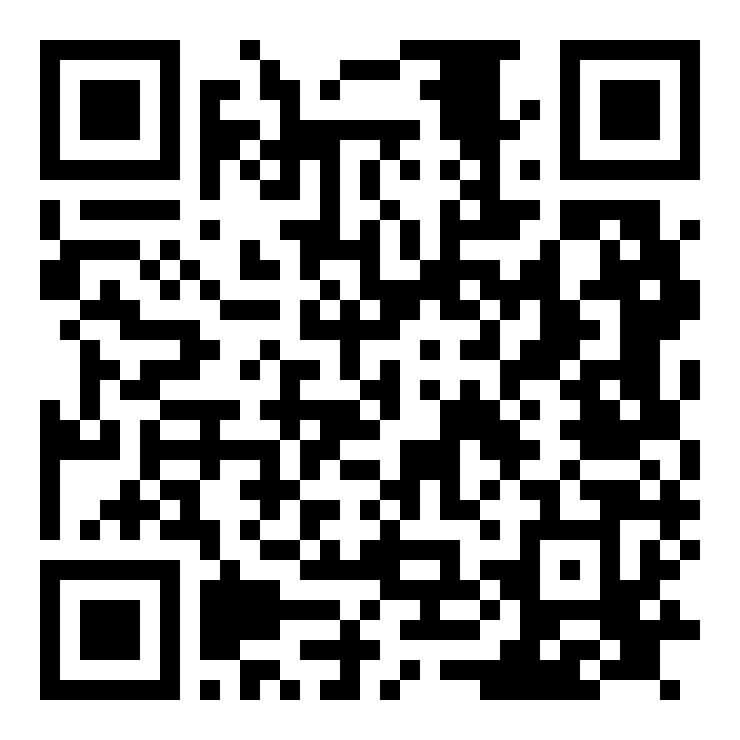
Android / Windows |
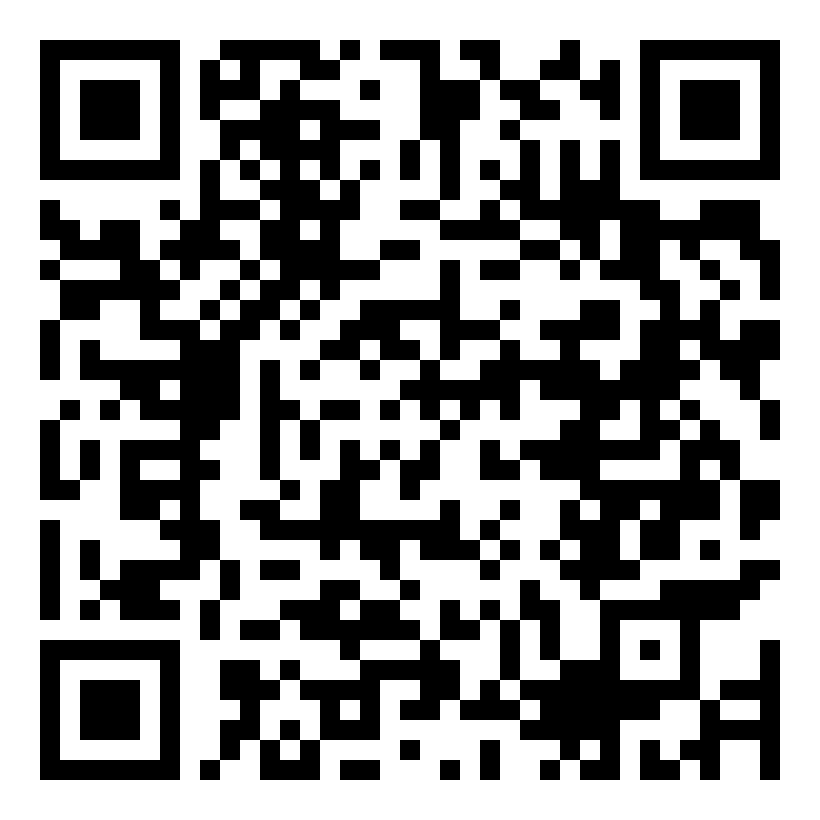
iPhone / iPad (Bluefy) |
English
1. Install the app (one time)
- Open the link or scan the QR code.
- Android and Windows 11: tap "Install app" (Chrome or Edge). The clock icon now appears on your home screen or Start menu.
- iPhone/iPad: Safari does not support Bluetooth for web pages. First install the free Bluefy browser from the App Store (link). Then open the iPhone launcher page in Safari and tap "Open in Bluefy". Alternative: the app "Bluetooth UART time" (link).
2. Send the time to the clock
- Switch Bluetooth on and start the app using the clock icon.
- Tap "Connect to WordClock" and choose your clock from the list.
- Time and date are sent immediately and then every 30 seconds (Auto-send).
- Only want to do it once? Switch Auto-send off and tap "Send Now".
- Tap "Disconnect" when you are done.
Troubleshooting
- Clock not in the list: check that the clock is on and nearby.
- No "Install app" button: use Chrome or Edge and open the https link.
- Connection failed: switch Bluetooth off and on and try again.
Manual as PDF
Nederlands
1. Installeer de app (eenmalig)
- Open de link of scan de QR-code.
- Android en Windows 11: tik op "Installeer app" (Chrome of Edge). Het klokicoon staat nu op je startscherm of in het Start-menu.
- iPhone/iPad: Safari ondersteunt geen Bluetooth voor webpagina's. Installeer eerst de gratis browser Bluefy uit de App Store (link). Open daarna de iPhone-startpagina in Safari en tik op "Open in Bluefy". Alternatief: de app "Bluetooth UART time" (link).
2. Tijd naar de klok sturen
- Zet Bluetooth aan en start de app via het klokicoon.
- Tik op "Connect to WordClock" en kies je klok in de lijst.
- De tijd en datum worden direct verstuurd en daarna elke 30 seconden (Auto-send).
- Wil je het alleen één keer doen? Zet Auto-send uit en tik op "Send Now".
- Tik op "Disconnect" als je klaar bent.
Problemen?
- Geen klok in de lijst: controleer of de klok aanstaat en dichtbij is.
- Knop "Installeer app" ontbreekt: gebruik Chrome of Edge en open de https-link.
- Verbinding mislukt: zet Bluetooth uit en weer aan en probeer opnieuw.
Handleiding als PDF
More info and source code / Meer info en broncode: GitHub HTML-TimeSender